
Start your own zombie server
Starting a server sounds harder than it is because people use too many technical words. In simple terms, you need an online computer, the server files, a server key and a database that remembers player progress. Then you test everything before opening the doors.
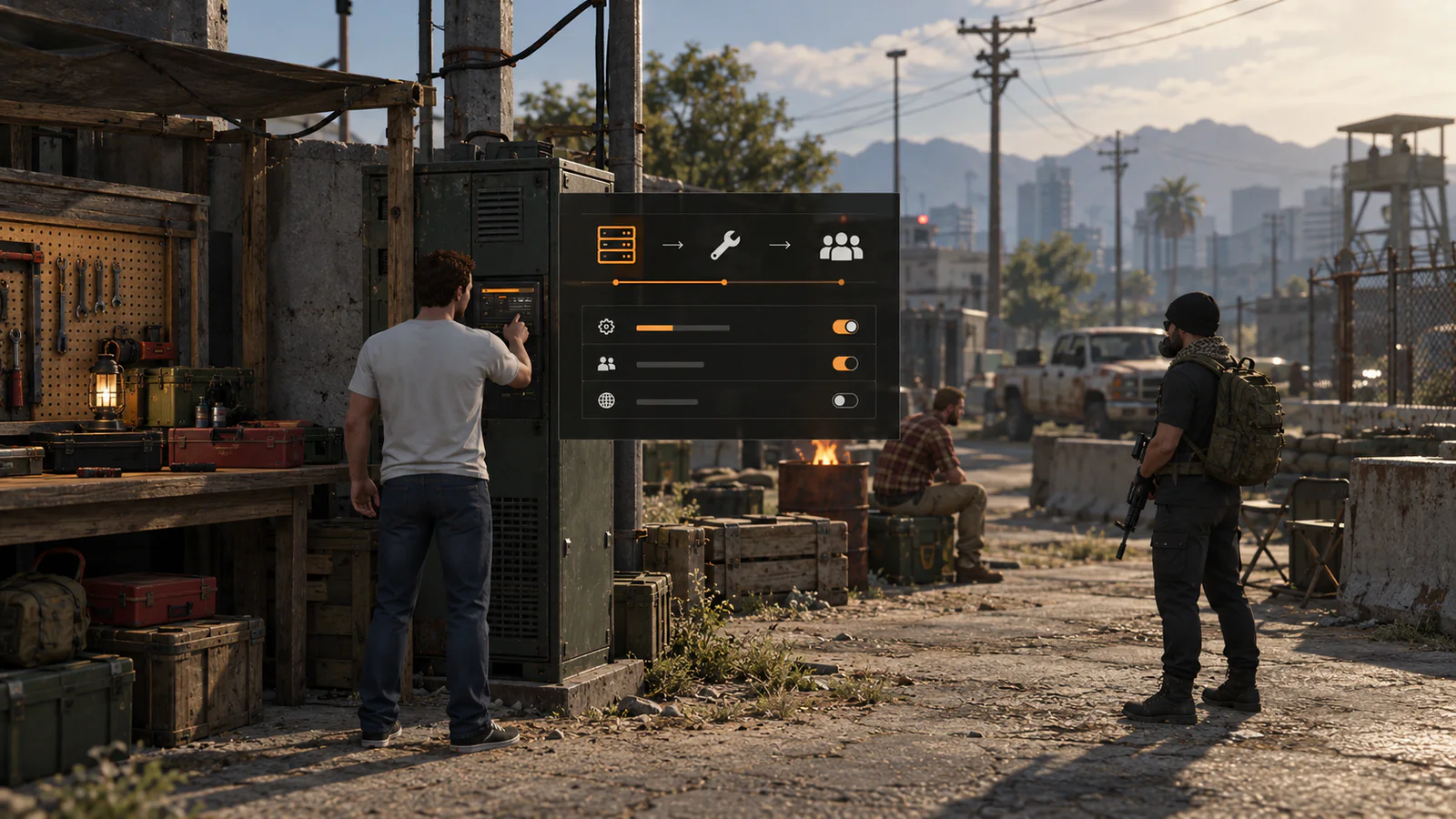
Host BeyondSurvival with 24Racks.
Need a computer that keeps your server online while your own PC is off? That is what a VPS does. 24Racks is our official hosting partner and a recommended place to start.
1. Choose where the server will live
Your server must run on a computer that stays connected to the internet. You can use your own PC while learning, but friends cannot join when it is switched off. A VPS is a rented computer that stays online for you. If you need one, our official partner 24Racks has a dedicated BeyondSurvival starting page. Choose a sensible starter option and only move to something larger when real players need it.
2. Get the four basic pieces ready
You need the current FiveM server files, txAdmin to control the server, a free Cfx.re server key, and MariaDB or MySQL to remember characters and their belongings. Do not add map packs and random scripts yet. First make sure the plain server starts and that you can join it.
3. Add BeyondSurvival in the right order
Follow the installation page and keep the included folder names. Add the core first, then the features that depend on it. Let the database setup finish. Create a character, pick up an item, leave the server, join again and check that the character and item are still there. If that works, your foundation is healthy.
4. Play the basic loop before decorating
Test a full hour like a real player: spawn, find supplies, fight infected, heal, craft something, store items and reconnect. Ask yourself whether a new player can understand what to do without an administrator standing beside them. Fix that first. A beautiful ruined city will not save a server where progress disappears.
5. Add maps and extras slowly
Large maps and texture packs can make older computers struggle. Add one group at a time, restart the server, and walk or drive around the changed area. Check for missing ground, invisible walls, objects floating in the air and interiors that disappear. Keep a backup before every large addition so you can go back easily.
6. Run a small private test
Invite a few honest testers before making a public announcement. Ask them to play normally, disconnect, return, drive across the map and cause some chaos. Watch for errors and poor frame rate. Fix problems that happen more than once, write down anything players must know, and only then open the server to everyone.
Continue from here
Check what your server needs, follow the step-by-step installation page, or ask for help in the BeyondSurvival Discord. Test changes on a private copy before using them on a live community.